Teams
You can add collaborators to your project through Teams, which is essentially a group of individuals added to your organization on our platform. For each project in your organization’s portfolio, you have the flexibility to include your entire team or select specific individuals as collaborators, depending on the project's needs. Different individuals may require varying levels of access and with Teams, you can manage these access levels by assigning appropriate roles to your team members.
Available roles on the Platfrom
| ROLE | DESCRIPTION |
|---|---|
| Admin | This is the highest role on the platform, with the authority to assign and modify team roles and permissions. They can manage user accounts, organize crawlers, control email digests and track billing. |
| Manager | This is another high role an individual can have. Managers, as the name suggests, manage all projects and users in the team. |
| Trusted | Trusted users can access projects assigned to him/her. They can initiate a new run, view and download data and schedule runs in the project assigned to him. |
| Viewer | Viewers can access projects assigned to him/her. They have view-only role meaning they can only view and download extracted data. |
Inviting Team Members
- The Admin and Manager have the ability to invite members.
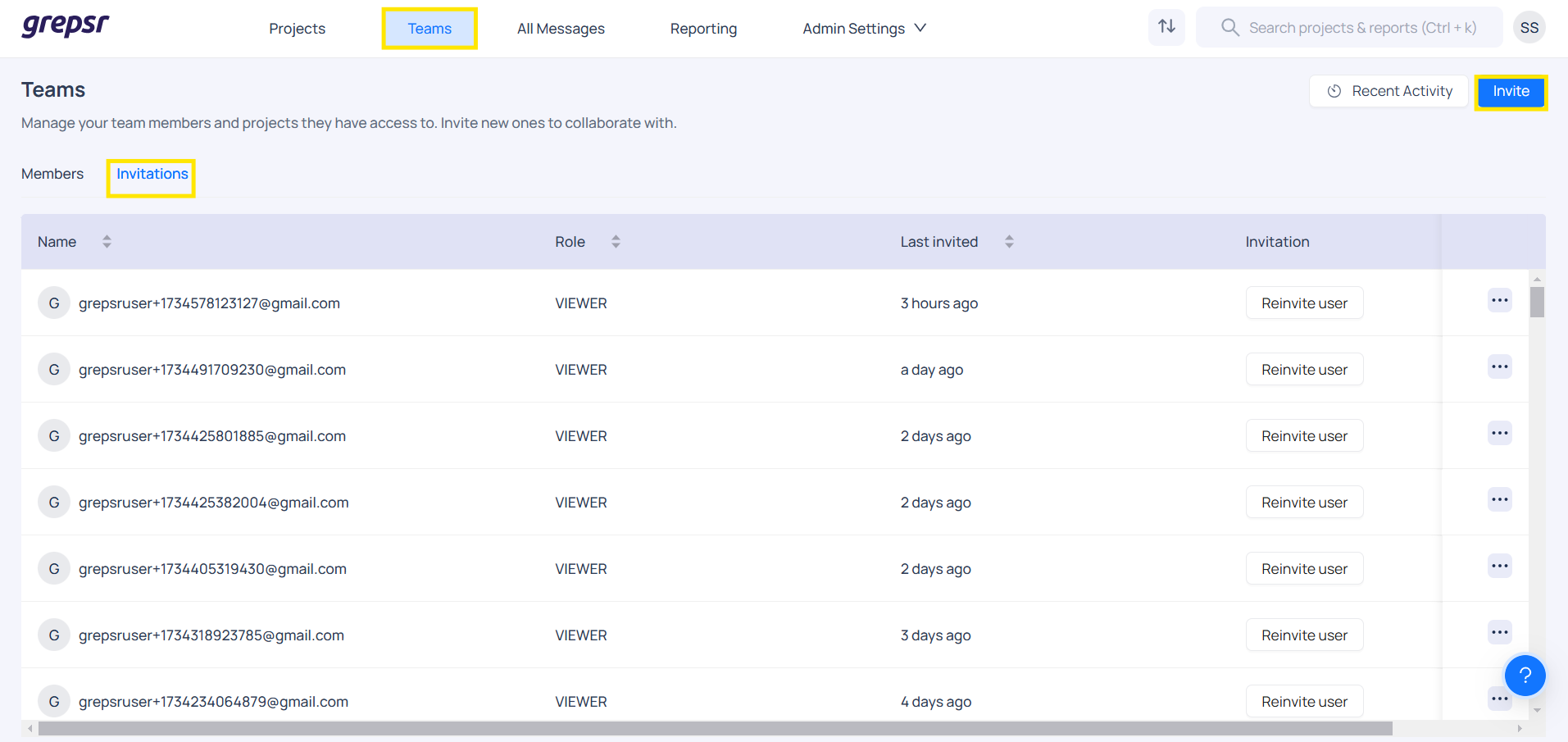
- They can invite others by clicking the Invite button on the Teams page.
- Roles and projects can be selected while inviting a user.
Invite multiple users
- Multiple users can be invited at once. Each invitee will receive an email invitation to join your organization. They must accept the invitation and complete their registration to appear as a team member in your organization.
Reinviting the user
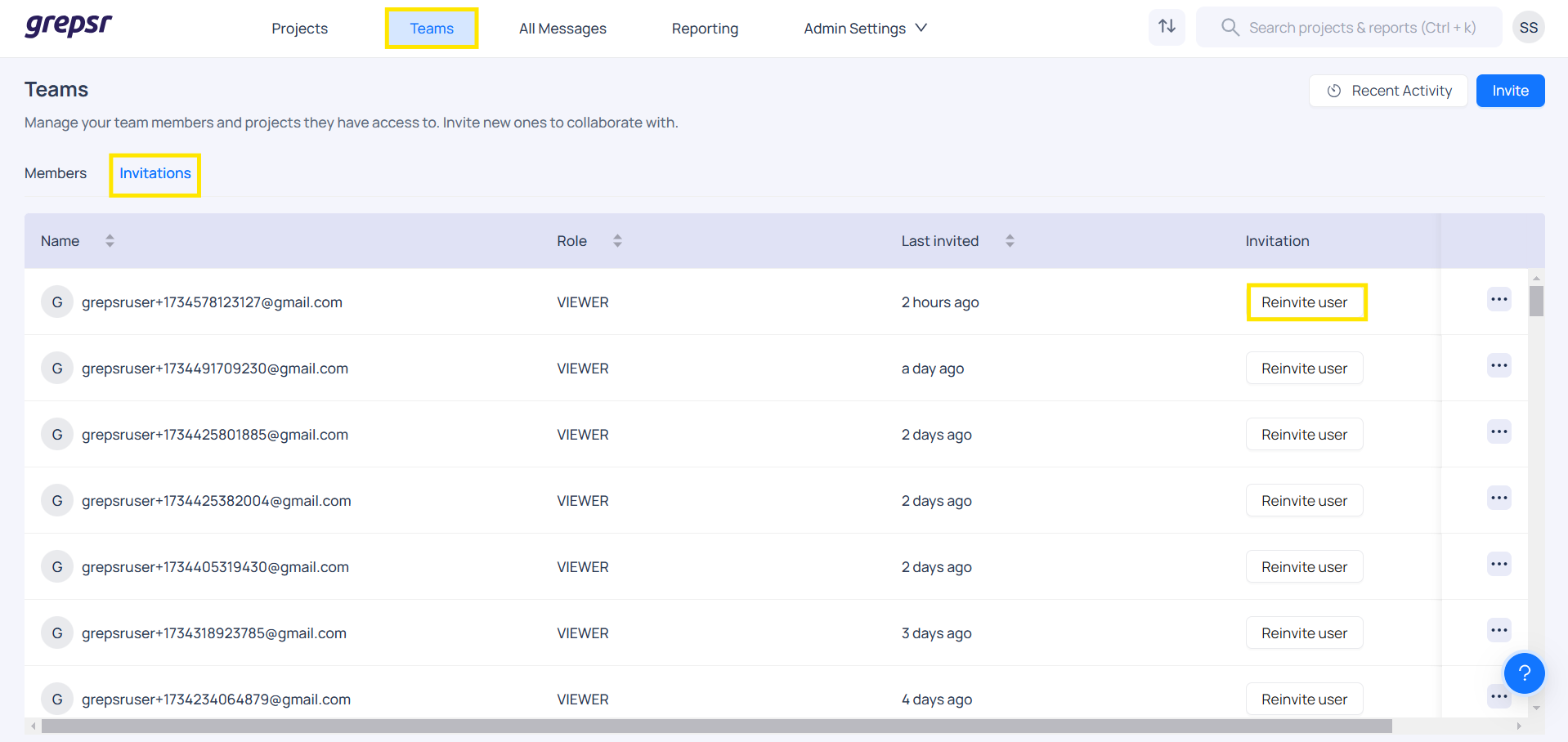
Sometimes emails can get buried. If your invitation remains unacknowledged, you can send a reminder by Re-invite a user which is on the Invitation section of the Teams Page. This will send another email invitation to the user.
Remove user from the team
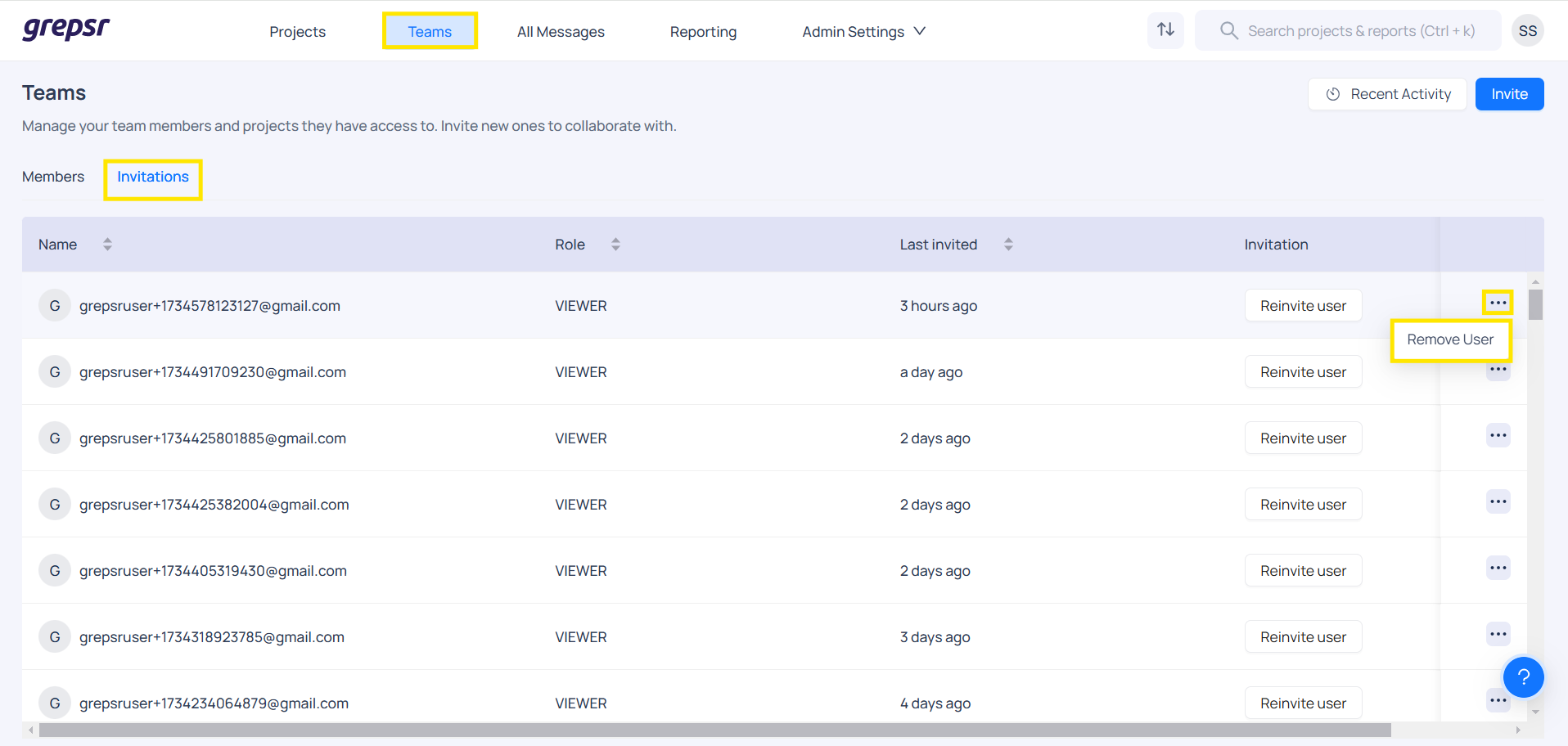
You can remove colleagues who are no longer associated with your organization from the team by navigating to the Teams page and selecting the option to remove them.
What happens when user is removed from the platform?
- Once the user is removed from the platform, they will not be able to login to the platform or access the projects.
- When removing a user, if the user is a project owner of any project, the project owner for those projects should be changed.
How can I add projects to the user?
- Navigate to teams page and click on project number corresponding to the user
- Search and assign the project to the user.